← Back to home

Publishing an offer and inviting an athlete

Updated on 2026-10-22

For:Coach guide

What you will do

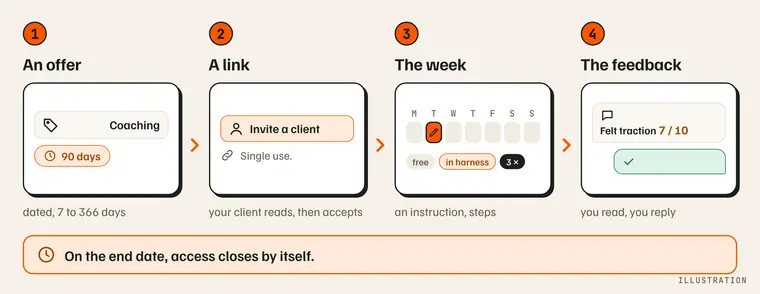
The coach's path in four steps: a dated offer, an invitation link, the week annotated, the feedback. Illustration.

Publish an accompaniment offer, send a link to your athlete, then find them under “My athletes”.

What you need

  • A MushMate account and an expert profile — Veterinarian, Experienced musher or Coach: the kind is only a label on your profile; your services decide what you can do.
  • A verification by the MushMate team: until it is done, you cannot invite anyone.
  • In France, a verified diploma: the Sports Code reserves paid coaching to diploma holders. Without a verified French diploma, your card does not appear under “Experts” (your current athletes still see you).

Step by step

  1. Create your expert profile. In the expert area, “Become an expert”: display name, kind (the one that describes you), country (it decides whether a diploma is required), region, bio. Add a photo, your achievements (year · race · result) and your diplomas with their proof (photo or PDF, only seen by the MushMate team): a diploma goes “Being verified”, then “Verified” or “Rejected” with a reason. The “Pending verification” badge becomes “Verified” once the MushMate team has approved you.
  2. Add an accompaniment offer. “Add service”, service Accompaniment, then a length of 7 to 366 days: your athlete's access closes by itself at the end.
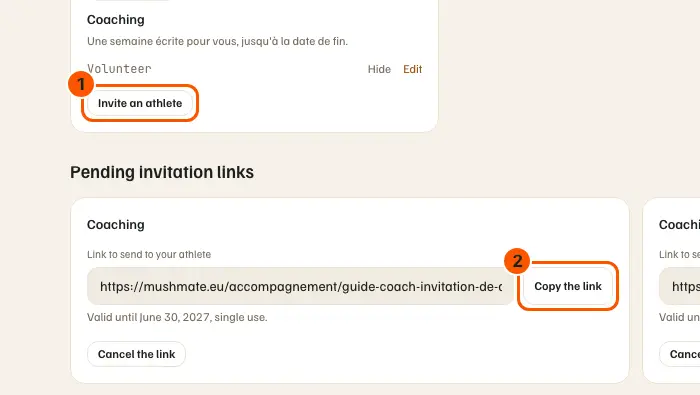
  3. Click “Invite an athlete” under the offer. A link appears: it works once. The “Coaching” offer with “Invite an athlete” (1), then the pending links and “Copy the link” (2).
  4. Copy the link and send it to your athlete, by whatever message you like.
  5. Find them under “My athletes” once they have accepted: their kennel and the end date. “My athletes”: the athlete's kennel and the accompaniment's end date (1).

What you should see

  • A pending link stays listed with its deadline until it is accepted or cancelled.
  • Once accepted, it leaves the pending links and the athlete appears under “My athletes”.
  • On the end date, the athlete's line closes: you no longer read anything from their kennel.

What others see

  • Your athlete reads, before accepting, what you will see and what you will be able to do: see Being coached.
  • Athletes see under “Experts” your photo, your name, your kind (Coach), your country and region, two lines of your achievements and the “Verified diploma” badge; “View profile” shows all your achievements and your verified diplomas. Never the proof, nor a pending or rejected diploma.

What it does not do

  • You do not become a member of your athlete's kennel: your access is the accompaniment's, and nothing else.
  • A link that has been accepted cannot be cancelled: the athlete removes access, or you end the accompaniment (Engagements › “End the accompaniment”, with a confirmation).
  • MushMate takes no payment for you: your fees are settled with your athlete.
  • You do not extend on your own: you propose, the athlete accepts again.

If something goes wrong

  • “Only a verified Pro offering an accompaniment can invite an athlete”: wait for the verification, or add an accompaniment offer.
  • “Too many links created in a short time”: try again in an hour.
  • “This coaching offer does not exist or is not yours”: reload the page, or create the offer again.
  • The demo account can neither create nor cancel a link.

Going further

  • Writing the week and splitting a session: instructions, steps, notes.
  • Reading the feedback and replying: feedback, resources, extension.
  • The coach guide: the path at a glance.
  • Stop being a coach, without deleting your account: at the bottom of your coach space, “Stop being a coach…” (on the phone: at the bottom of the Expert space). Your profile, offers and diplomas go away; your account and kennel stay. Refused while a coaching engagement is ongoing, pending or paused.