← Back to home

Writing your athlete's week

Updated on 2026-10-20

For:Coach guide

What you will do

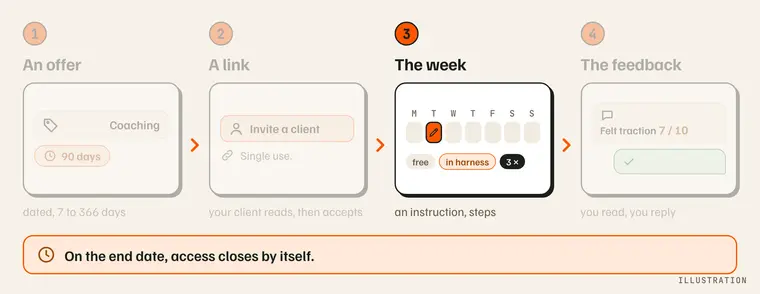
The coach's path, with the “The week” step highlighted: an instruction, steps. Illustration.

Set your athlete's week: each session (day, distance or duration, rig, dogs, intensity, instruction), its steps their phone will guide, your templates and the copy of one week onto the next.

What you need

Step by step

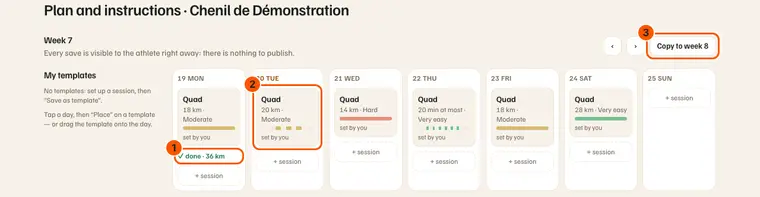
  1. Open your athlete's plan. “My athletes”, their kennel, then “Plan”: the “Plan and instructions” page. The current week opens in seven columns, one per day; each session shows its rig, its distance or duration, its intensity, and under the day what was done. The week in seven columns: under a day, what was done (1); a session set by you, split into steps (2); “Copy to week 8” (3).
  2. Set a session. Tap it: the “Set up the session” panel opens (on the right on a large screen, below the week otherwise). Choose Distance or Duration, the rig, the surface, the intensity, the dogs (or “Whole team”), write the note for the athlete, then “Save”.
  3. Add or remove a session. “+ session” under a day to create one; “Remove the session” in the panel to delete it.
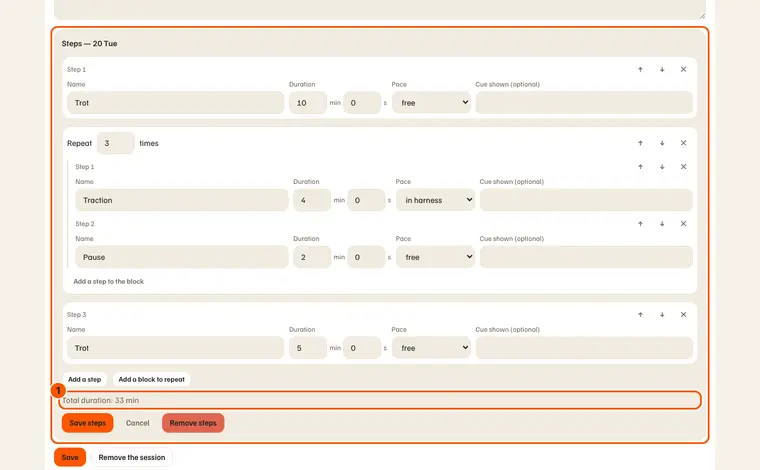
  4. Split the session into steps. “Split into steps”: a name, a duration, “free” or “in harness”. A “Repeat N times” block groups steps. The steps editor: three items, a block repeated 3 times, and the total duration (1).
  5. Keep a session as a template. In the panel, name it then “Save as template”: it joins “My templates”, on the left.
  6. Reuse a template. Tap a day (“+ session”), then “Place” on the template — or drag the template onto the day.
  7. Copy the week. “Copy to week N” replaces the sessions of the next week with these ones, steps included.

What you should see

  • Every save is visible to the athlete at once: there is nothing to publish. A session you placed or changed shows “set by you”.
  • Under a split session: its profile, one bar per step in the colour of the intensity.
  • On your athlete's side: “Held by your coach” on the plan page (with your name if your profile is verified and listed), the session and its steps; on their phone, a session with steps is guided.

What others see

  • Your athlete and the members of their kennel read your sessions, instructions and steps; they keep control: editing the plan stays possible, and “Adjusted by MushMate” hands the plan back to the generator.
  • While you hold the plan, MushMate proposes no new version for that goal: nothing overwrites your sessions.

What it does not do

  • An instruction alone does not hold the plan: only a changed session (day, distance, duration, intensity, rig, dogs) does.
  • MushMate does not read your instruction: it enters no load calculation. A session you place carries no planned load until the engine recomputes it.
  • Steps belong to the goal and to the day: a moved session takes its steps to its new day.
  • No health data about the person: the form reminds you, MushMate does not collect it.
  • Outside your accompaniment (ended, or a simple review), the page no longer opens for writing.

If something goes wrong

  • “A step lasts from 5 seconds to 60 minutes”: fix the step's duration.
  • “A block repeats 2 to 20 times” and “A block cannot contain another block”: one level of block only.
  • “Past the ceiling, the phone keeps guiding and warns”: the ceiling is the session's; the warning blocks nothing.
  • “The accompaniment is no longer active”: the end date has passed, your athlete removed access, or you ended it.
  • No “Split into steps” button: it only appears for a session whose week carries a date. An older plan may not have one: write to the MushMate team.

Going further