What you will do
Found a club — a leaderboard and group outings shared by several kennels — or join your team's. Each kennel keeps its dogs, plans and logbooks to itself: only its name and its cumulative kilometres are shared with the other members.
What you need
- A kennel you own: founding or joining a club is reserved to the owner; other roles see a reminder of the rule.
- To join: an invitation code or an invitation link, which the founding kennel sends you (it is valid for 14 days and can serve several kennels).
Step by step
- Open Team › Club. As long as your kennel belongs to no club, the page opens on two forms.
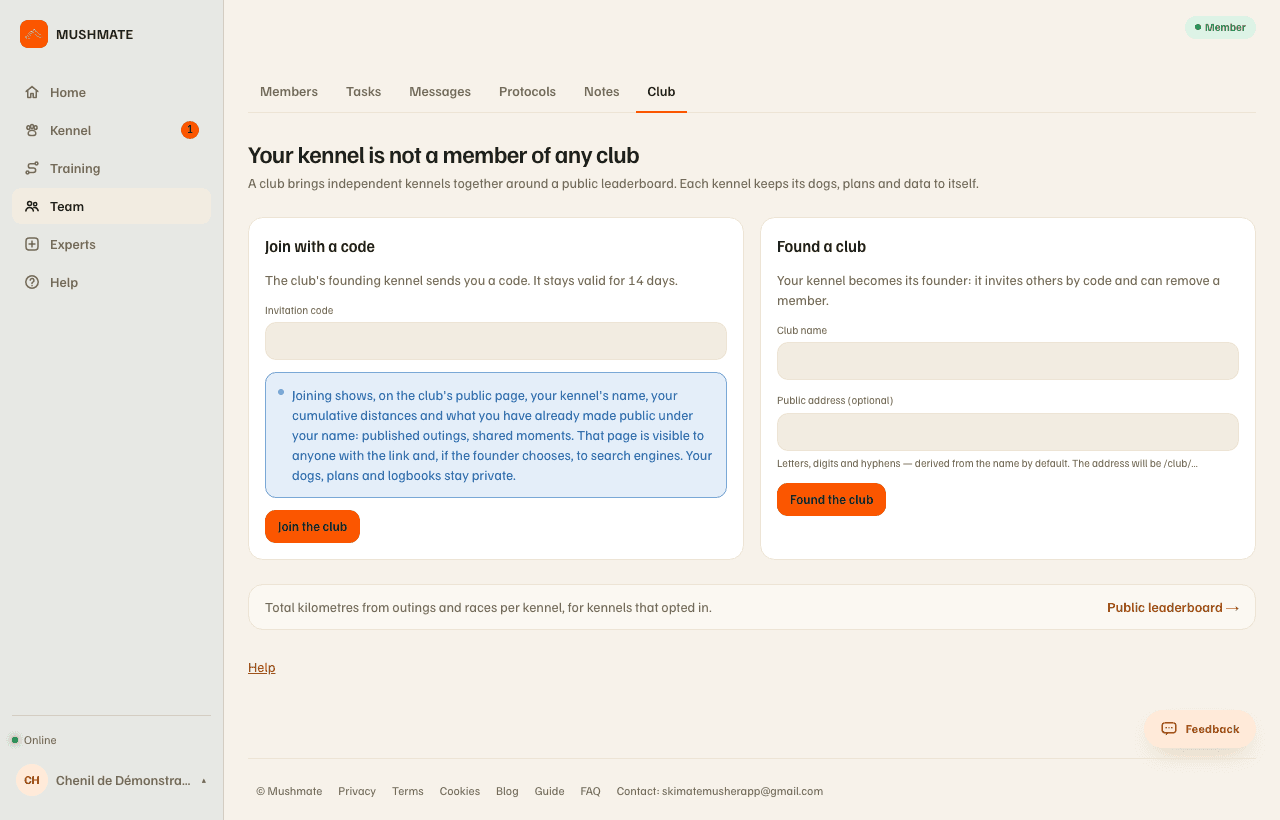
- To found, fill in "Found a club": a name, and a public address if you want (otherwise it is derived from the name, in the form
/club/…). Your kennel becomes the founding kennel: only it will issue invitation codes and be able to remove a member. - To join, type the code in "Join with a code" then "Join the club" — or, simpler, open the invitation link the founder sent you: it shows the club's name, its number of kennels and what "joining" commits you to. Without an account, it leads to sign-up then to kennel creation, and brings you back to the link each time.
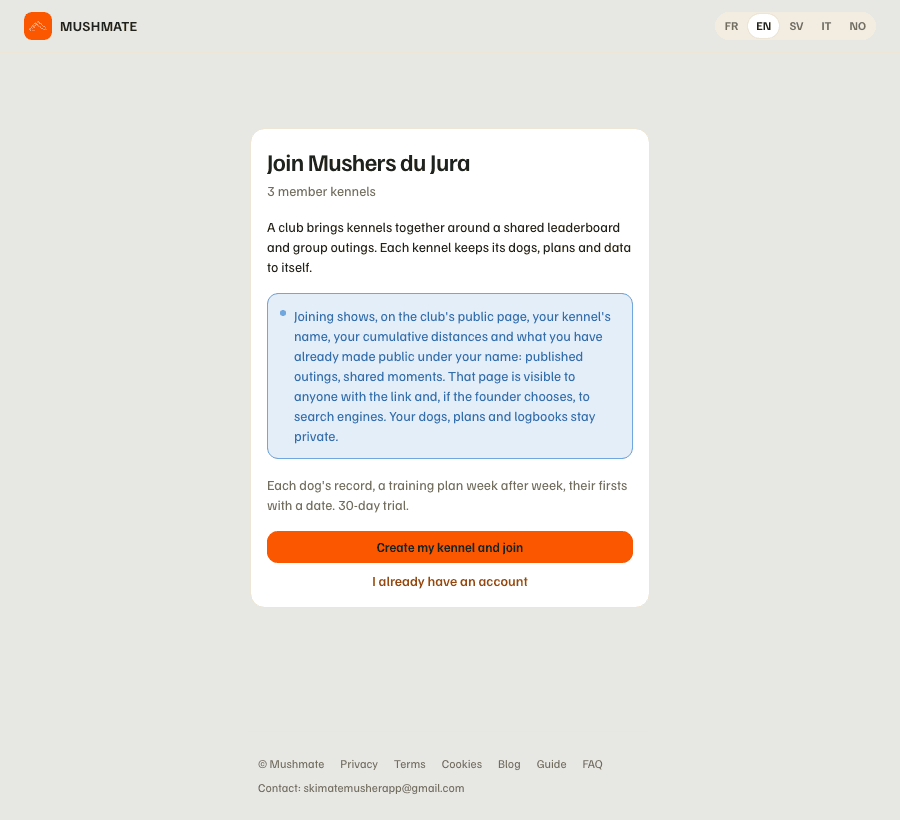
- Read what joining commits you to, then confirm with one click. The form says it before you confirm: joining counts as consent.
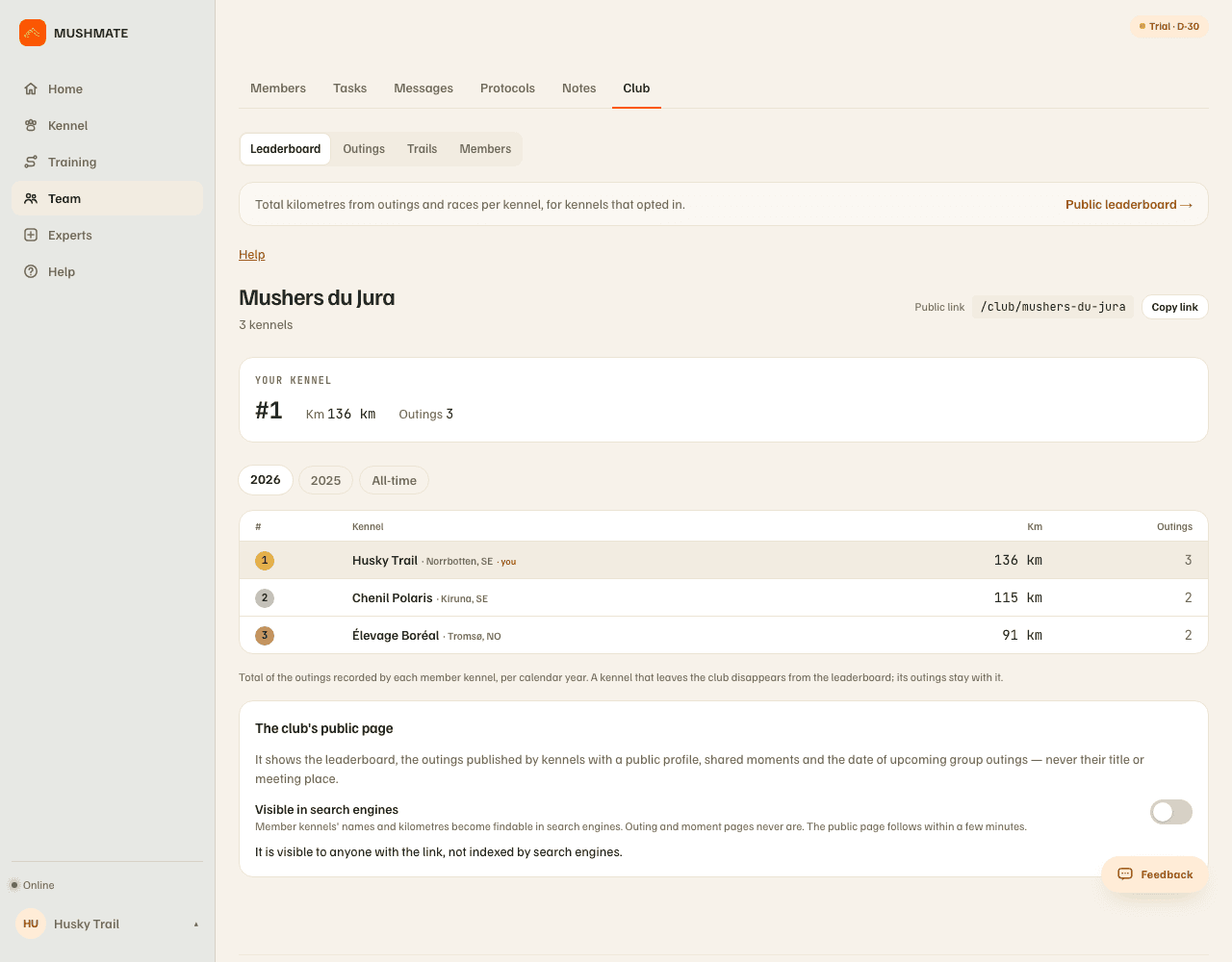
- You land in the club, on four pills: Leaderboard, Outings, Trails, Members.
What you should see
- Your kennel in the leaderboard, with its rank, its kilometres and its number of outings.
- The club's name and number of kennels, and the club's public link with "Copy link".
- If your kennel is in several clubs, a second row of pills, right under the first, to switch between them.
- On the phone, the same screen: "Club" in the Kennel's modules, or the Club line of Manage, Team section — the website's four tabs.
What others see
- The other kennels of the club see your kennel's name and your cumulative kilometres (outings and races). Never your dogs, your plans or your logbooks.
- The club's public page, open to anyone with the link, shows your kennel's name, your cumulative distances and what you already made public under your name (published outings, shared moments). Search engines only find it if the founder chooses so.
- The founder also manages the invitation codes and can remove a member.
What it does not do
- An invitation link or a shared outing's link doesn't make anyone enter: only the kennel's owner confirms the entry, with one click, after reading what it commits to.
- A kennel already in a club doesn't have the "Join with a code" form: to join a second one, it goes through the invitation link, which opens in the browser.
- The founding kennel has no button to remove itself from this screen; any other member kennel can leave the club on its side.
- The public leaderboard (
/classement) is another page, outside any club: joining a club counts as consent to ITS leaderboard, regardless of that setting.
If something goes wrong
- "This code does not match any invitation.": the code was copied wrong. "This code has expired — ask the founder for a new one.": it is older than 14 days.
- "This link is no longer valid": the invitation link has expired, been withdrawn, or is incomplete; ask the club that sent it for a new link.
- You have no "Join" or "Found" button: only the kennel's owner has them; another role reads.
- You want to leave: "Leave the club" removes your kennel from the leaderboard; your outings stay yours.
- On the phone, the club is read online: without a network, the screen says so and shows nothing out of date, and a gesture tried offline is refused right away.
Going further
- Inviting a kennel and managing the members: the founder's side.
- Proposing a club outing: what a club is for.
- Club and leaderboard: the complete reference.