What you will do
Three things, done in the app's header and in Settings:
- read where your access stands: trial, comped by a partner, member, or read-only;
- keep a copy of your data: your account export, and the backup of the whole kennel;
- close your account, if you decide to.
What you need
- An account and a kennel.
- To download the kennel backup: a kennel with full access. The trial is enough; read-only is not.
- To restore a backup: be the kennel's owner.
- To delete your account: be signed in and, if you own a kennel you share with others, hand its ownership over first.
Step by step
- Read your status. In the header of every screen, a pill: "Trial · D-N" (a new kennel gets 30 days of full access), "Comped · D-N" (months offered by a partner), "Member" or "Read-only".
- If a partner gave you a code, open Settings › My kennel, the "Partner code" card, "I have a code" field. The details are in Using a partner code.
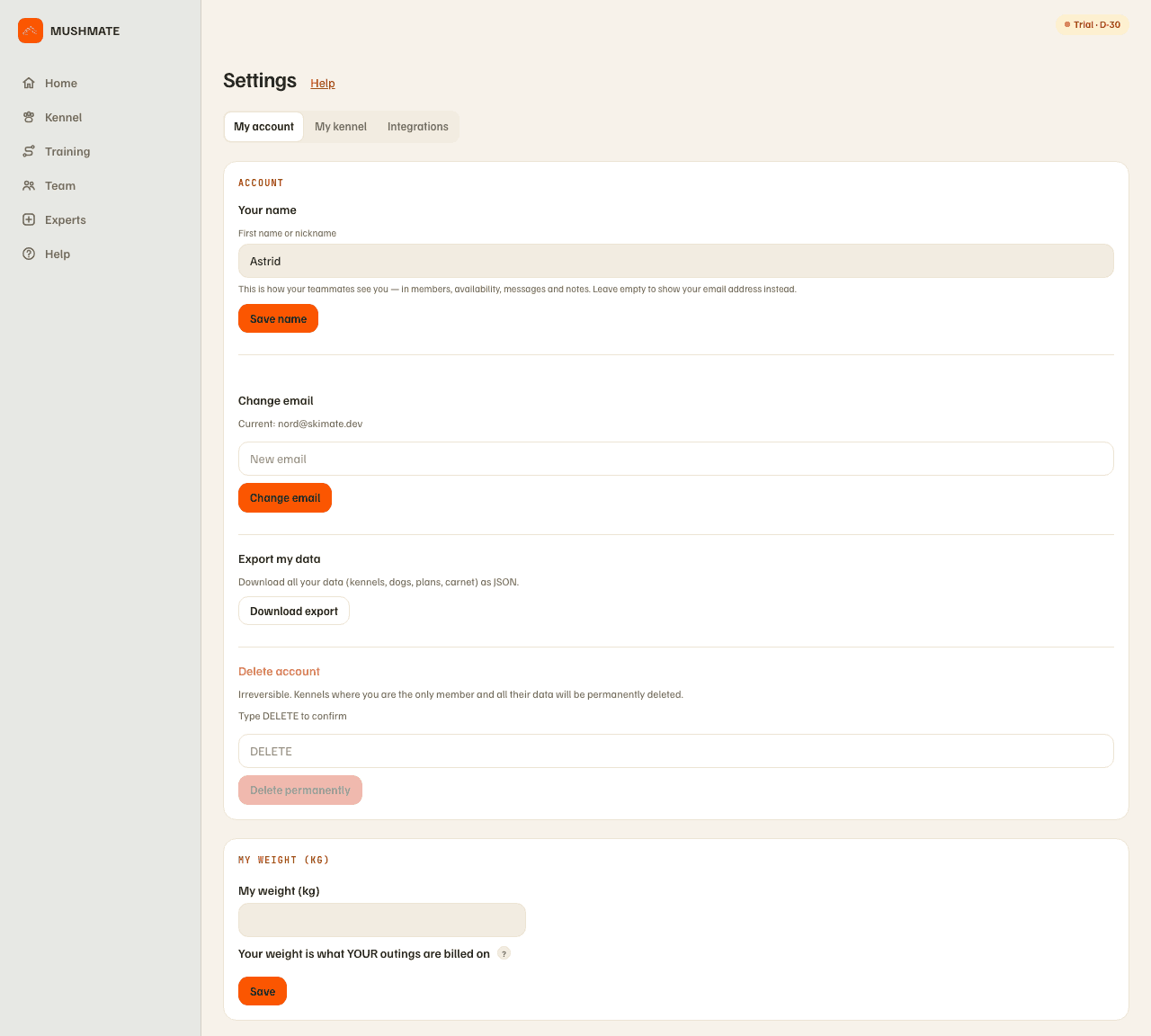
- Export your data: Settings › My account, "Export my data" section, "Download export" button. You get a JSON file of everything that belongs to you (kennels, dogs, plans, carnet).
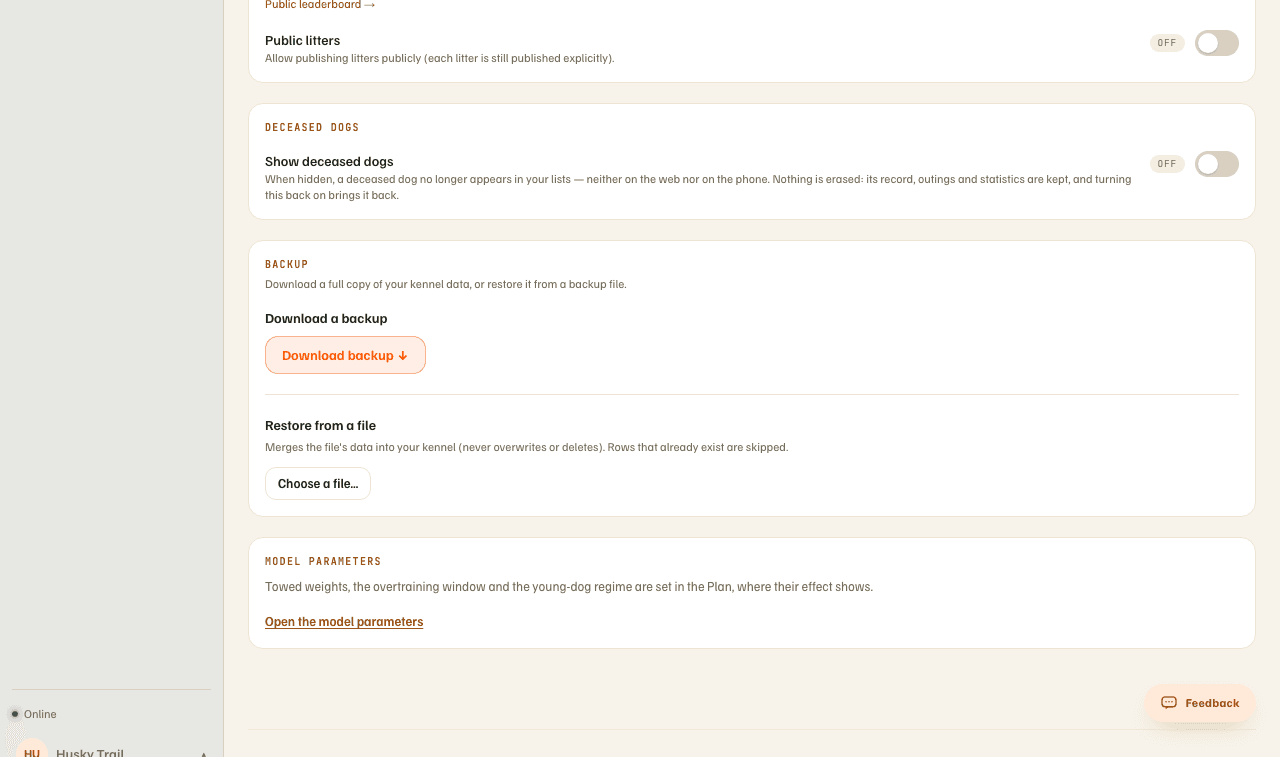
- Download the kennel backup: Settings › My kennel, "Backup" card, "Download backup". It is a complete JSON file of the kennel.
- Restore if needed (owner): "Choose a file…" in the same card, then the backup file. Nothing is overwritten or deleted: the file is merged into the kennel.
- To close your account: Settings › My account, at the very bottom, "Delete account". Type DELETE to confirm, then "Delete permanently".
On the phone, Settings carries the same gestures: backup and restore go through a file picker, "Subscription" opens the purchase screen, and "Delete my account" is at the bottom of the screen (same confirmation, DELETE). Display units can only be set on the web.
What you should see
- After the export or the backup: a
.jsonfile in your downloads. - After a restore: a summary, table by table, of what was added and what was skipped (already there). If the file held rows that could not be written back — a dog without a recognised microchip, a chore whose slot is already taken —, a separate box, "Saved, but not restored", counts them: keep the file, that data cannot be rebuilt from any other source.
- After the deletion: the sign-in page.
What others see
- Your status is the kennel's: your teammates see the same pill as you, and "Offered by …" (with "N days left, offered by …" in the last fourteen days) shows for everyone.
- The partner only sees the number of activations of their code: never your name, nor your kennel's.
- Your export is for you alone: nobody else receives anything from it.
- Deleting your account erases the kennels where you are the only member, with all their data. A shared kennel stays with its new owner.
What it does not do
- No self-service subscription on the web: where a feature requires one, a "Contact us" link opens a pre-filled email. No price is shown there. On the phone, the "Subscription" screen shows the offer and its price as returned by the App Store or the Play Store.
- A restore replaces nothing and deletes nothing: a row that is already there is skipped, never overwritten. It does not "roll back".
- Deleting the account does not stop a subscription taken through the App Store or Google Play: you cancel it in the store ("Manage subscriptions").
- The deletion is irreversible: nothing can be reopened afterwards. Export first.
If something goes wrong
- "Transfer ownership of your shared kennels to another owner before deleting your account." Open Team › Members, give a teammate the Owner role ("Member role"), then try again. The kennel must keep at least one owner.
- "Download backup" is greyed out, with "Backup and restore require an active subscription.": your access is read-only. A "Contact us" link sits next to it; a partner code can also be activated on a read-only kennel.
- "Restore incomplete": the import stopped at one table. Everything listed was written; importing the same file again is safe, the import resumes from there. If it stops at the same place, the cause is in the file.
- "This backup was made by a newer version of Mushmate": update the app, then import it again.
- On the phone, deleting requires a connection; writes not yet sent are lost, and the screen shows how many.
Going further
- Settings and subscription: the complete reference for each card.
- Using a partner code: months offered, no credit card.
- Inviting your team: who sees what, and how to change owner.