What you will do
Open an account, create your kennel — your team's workspace — and add your first dog. A single account serves the web and the phone; you find the same kennel on both sides.
What you need
- An e-mail address and a password: nothing else.
- A name for your kennel and, for your first dog, its name, birth date, baseline weight, sex, type and size — everything can be corrected afterwards.
- If your team has already invited you, there is nothing to create: see "If something goes wrong".
Step by step
- Open the sign-in page and switch to the "Create account" tab (on the phone: "No account? Create an account").
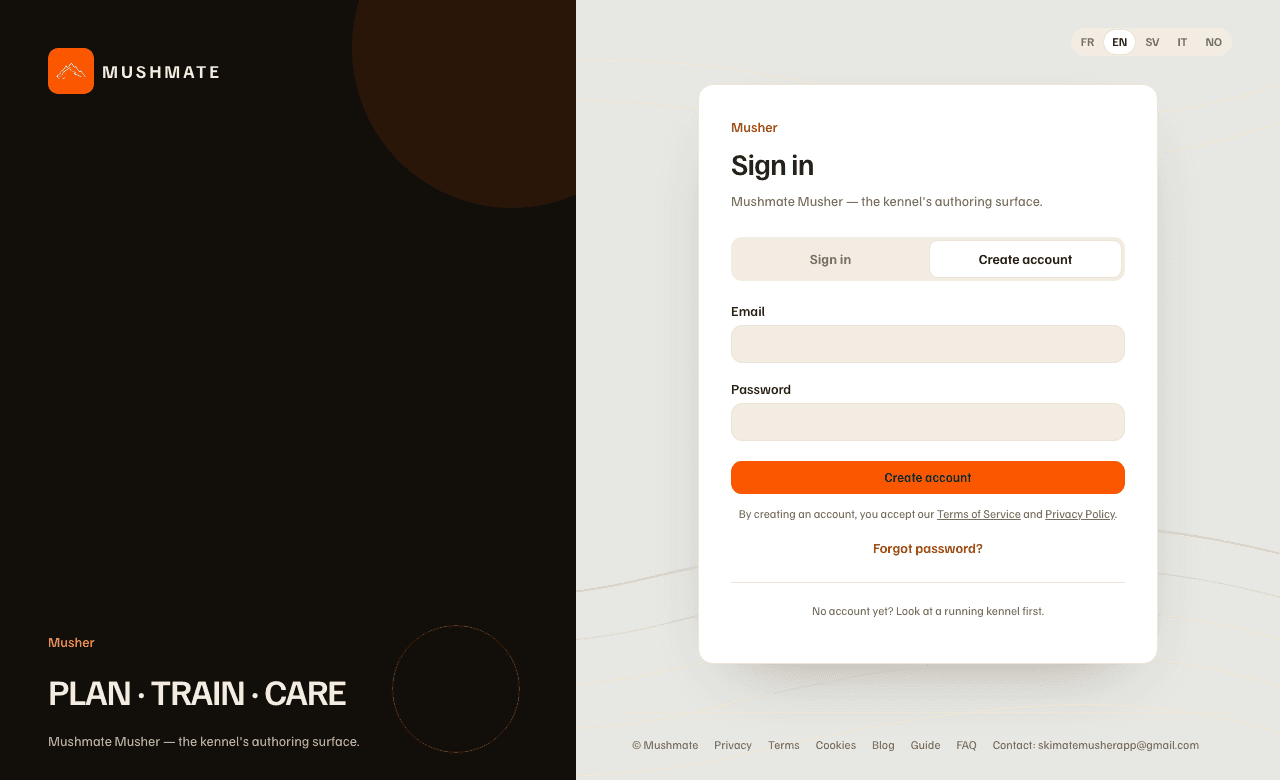
- Enter your address and a password, then "Create account". Creating the account counts as accepting the terms of use and the privacy policy. If the screen asks you to confirm your address, open the link you received: you pick up exactly where you were.
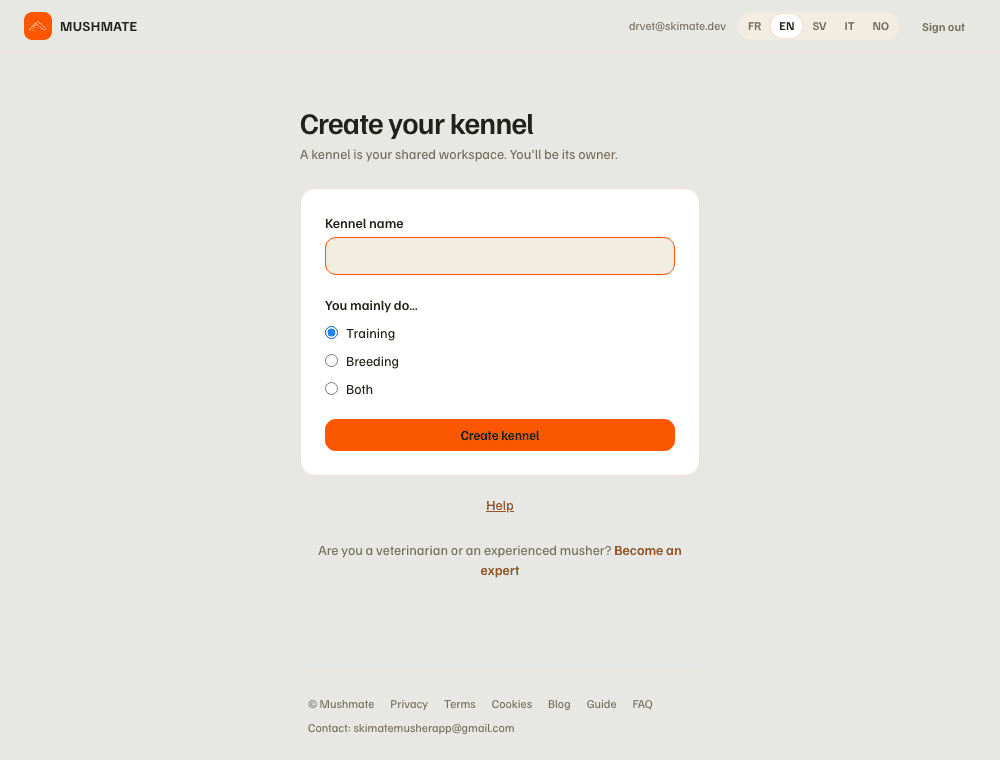
- "Create your kennel" opens. Give its name, then choose "You mainly do…" — Training, Breeding or Both — and click "Create kennel". You become its owner.
- The "Add a dog" form opens by itself. Fill in at least a name: the birth date, baseline weight (kg), sex, type (Sprint, Distance or Mixed) and size (Medium, Large) help the model, but nothing is compulsory. Click "Save", or "Later" to leave the kennel empty for now.
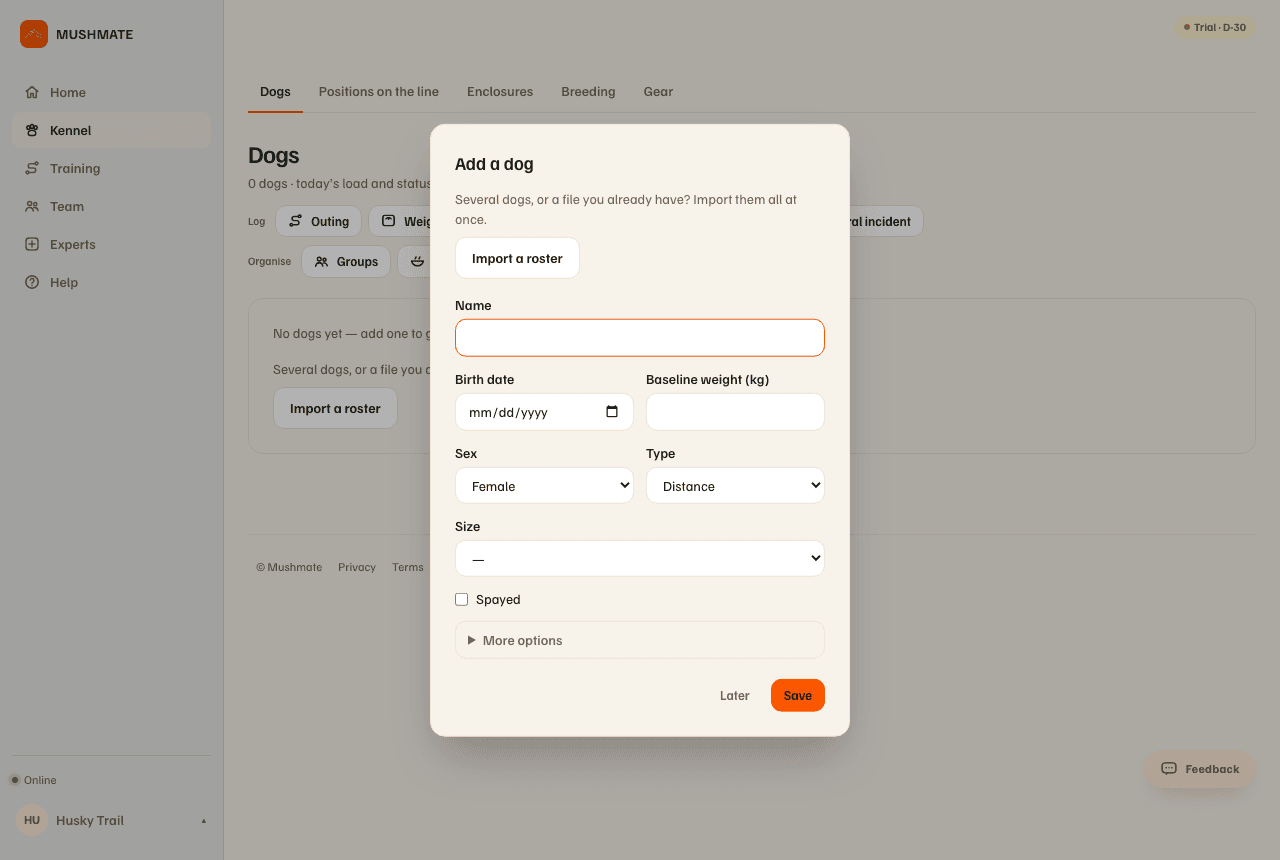
- You land in Dogs. The pill at the top of the screen says "Trial · D-30": your kennel starts with a 30-day trial.
What you should see
- Your kennel in the sidebar (its name at the bottom left), and Dogs with your first dog — or "No dogs yet — add one to get started."
- The web account opens the same kennel on the phone: sign in with the same address.
- On a training or mixed kennel, the Training section (Plan, Traces, Stats, Times) appears in the sidebar.
What others see
- Nobody: a kennel is private. Only the members you invite see it, with the role you give them (Owner, Handler, Vet, Viewer or Guide). See Team: roles and invitations.
- Nothing is published: neither the kennel's name nor the dogs, until you turn on a public setting (leaderboard, litters, trails…).
What it does not do
- Joining a kennel by invitation link is done on the web: open the link in a browser, including the phone's; the kennel then shows the next time the app launches, with the same account.
- The focus freezes nothing: it sets what is shown (Breeding, Plan…), and can be changed later in Settings.
- It is not a second account for the phone: one account, two apps.
If something goes wrong
- You were invited: on this screen, a "Pending invites" section ("You have been invited to join … as …") offers "Join the kennel" directly, without finding the e-mail again. If you open an invitation link, use the exact address it was sent to: an invitation meant for another address is refused, with a message that explains it.
- "Kennel name is required.": the name is the only compulsory thing at this step.
- "We couldn't create the kennel. Please try again in a moment.": try again; if it persists, write to the contact address at the bottom of every page.
- You clicked "Later": add a dog whenever you like, from Dogs › "Add a dog".
Going further
- Adding your dogs: one by one, or the whole pack at once.
- Creating a goal: the season and the plan.
- Getting started with MushMate: the complete reference.